Zoom
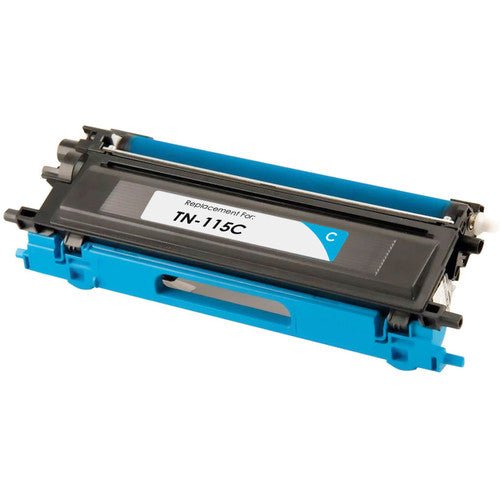
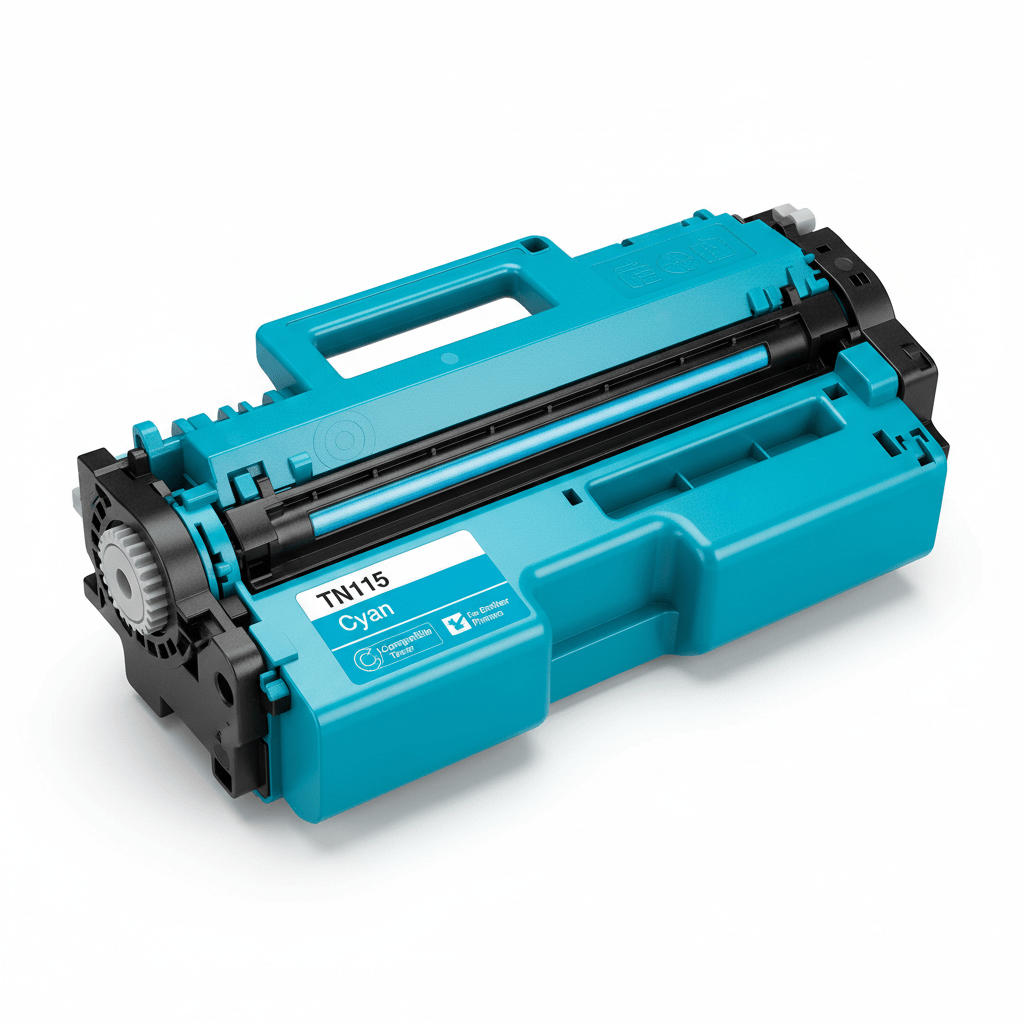
Add vibrant, professional color to your documents with our Brother Compatible TN115 Cyan Toner Cartridge. This high-yield replacement is the perfect solution for businesses that need high-impact color graphics and marketing materials without the high cost of original brand-name cartridges.
The TN115C is designed to replace the standard TN110 series, offering significantly more toner for your color-intensive projects.
Vibrant Blue Tones: Specifically formulated to deliver consistent, bright cyan hues for logos, charts, and photographic elements.
High-Yield Efficiency: Print up to 4,000 pages, reducing the frequency of cartridge changes compared to standard-yield versions.
Sharp Detail: Engineered to work seamlessly with Brother's laser technology to ensure clean lines and smudge-proof results.
Smart Recognition: Includes a compatible chip to provide accurate "Toner Low" warnings and ensure 100% compatibility with your printer's software.
The following table provides the technical details for the Brother Compatible TN115 Cyan toner.
| Feature | Product Details |
|---|---|
| Model Number | TN-115C (High-Yield Compatible) |
| Color | Cyan |
| Page Yield | Up to 4,000 Pages (@ 5% coverage) |
| Printer Technology | Color Laser |
| Used with Drum | DR-110CL (Cyan Slot) |
The TN115C is fully compatible with the following Brother printer models:
Brother HL Series: HL-4040CN, HL-4050CDN, HL-4070CDW
Brother DCP Series: DCP-9040CN, DCP-9045CDN
Brother MFC Series: MFC-9440CN, MFC-9450CDN, MFC-9840CDW
If your blues look slightly off or your colors don't line up perfectly after installing a new TN115 Cyan cartridge, your printer likely needs a quick calibration. This ensures the new toner density matches the other colors for professional-grade output.
This is the most effective way to fix color shifts (e.g., if Cyan looks too light or too dark).
On the Printer Control Panel:
Press Menu.
Use the arrows to find Printer or Color Correction.
Select Calibration and then Calibrate.
Press 1 (Yes) or OK to begin.
Wait for the printer to finish its internal checks; it will return to "Ready" mode when done.
If you see "ghosting" or color shadows (where the Cyan is slightly shifted to the left or right of the text), you need to align the colors.
Steps:
Go to Menu > Printer > Registration.
Select Auto Registration.
The printer will print a test pattern internally and realign the four colors.
| Check the Transfer Belt: If you see a consistent vertical blue line, open the printer and check the long black belt (Transfer Belt) for any blue toner debris. Gently wipe it with a dry, lint-free cloth. |
Sometimes the issue is the software, not the toner.
Open your document and go to Printer Properties.
Under the Advanced tab, ensure Color/Grayscale is set to Color.
Select Graphics and ensure Color Mode is set to Vivid for the brightest Cyan results.

Brother

Xerox

HP

Canon

Epson

Lexmark
Wishlist is empty.