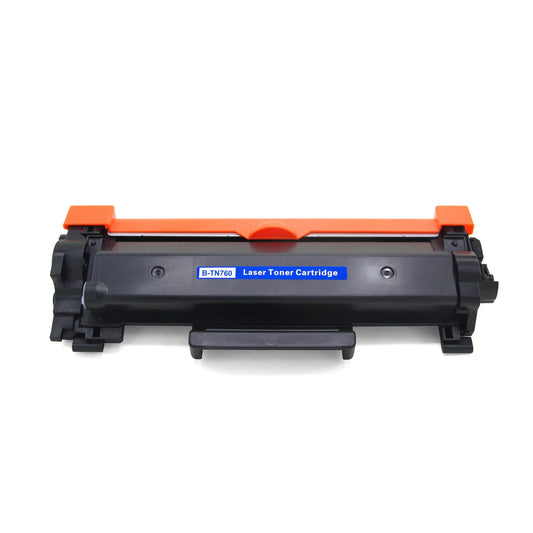
Description
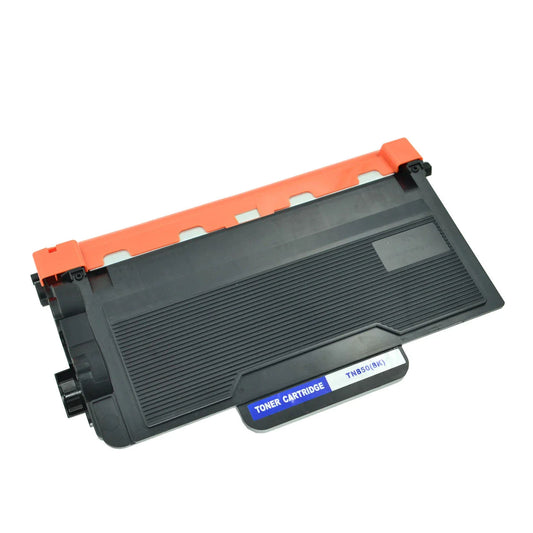
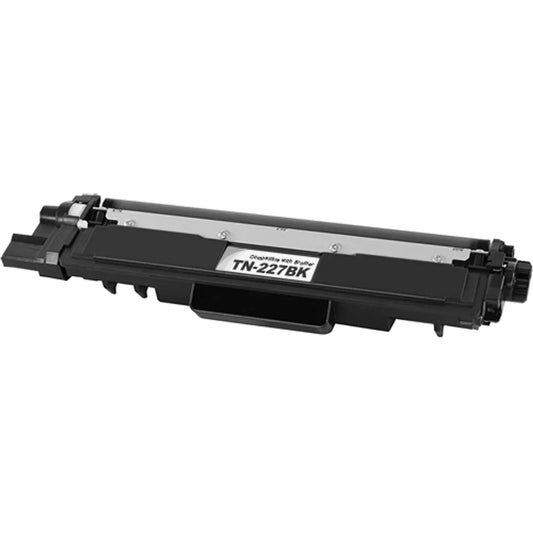
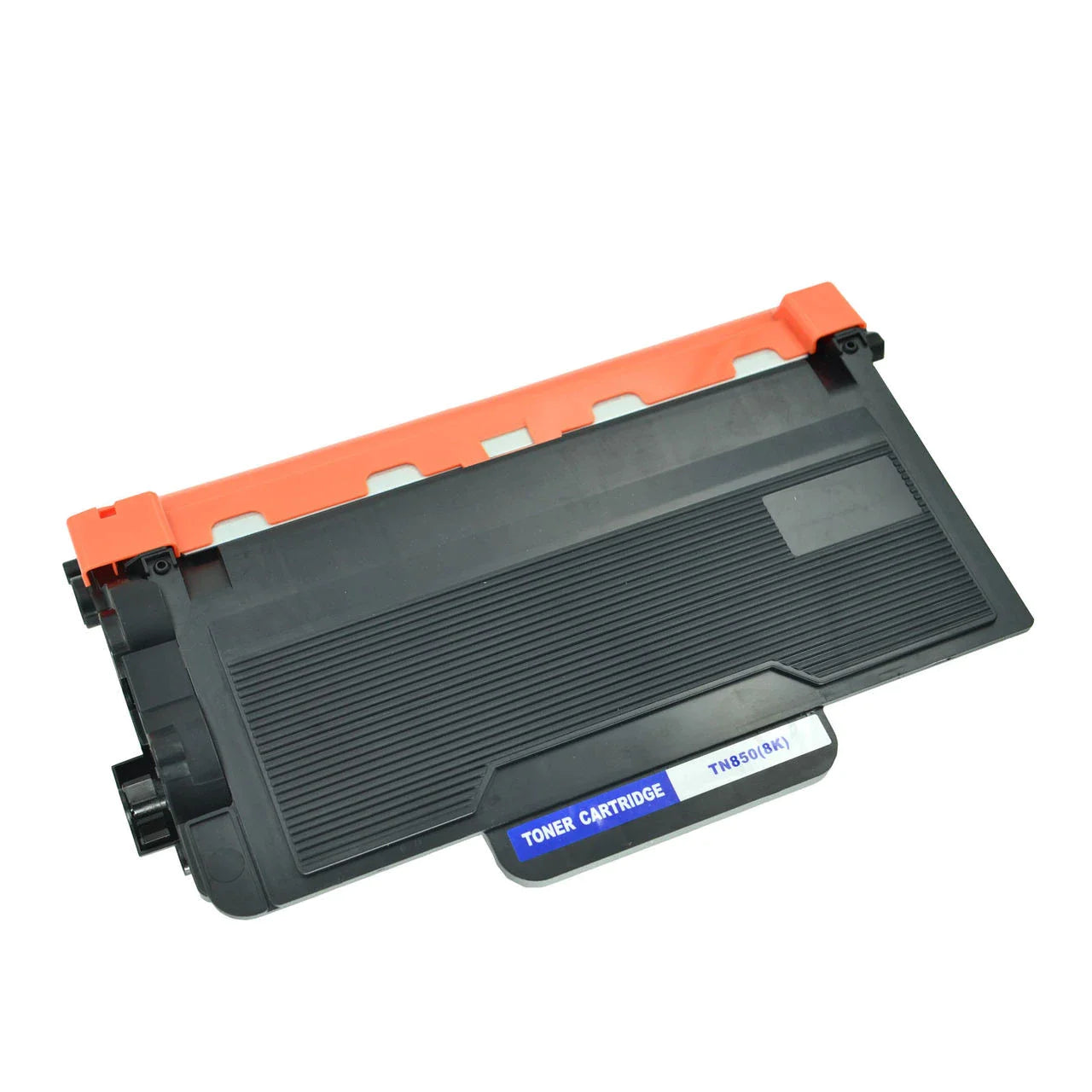
High-Performance Brother Compatible TN850 High-Yield Toner Cartridge
Maximize your office productivity with the Brother Compatible TN850 High-Yield Toner Cartridge. Designed for high-demand environments, this cartridge is the high-capacity alternative to the standard TN820, offering a significantly lower cost-per-page while maintaining the professional standards your business requires.
Why the TN850 is the Smart Business Choice
The TN850 is a powerhouse in the world of monochrome laser printing. If you are printing hundreds of pages a week, this high-yield cartridge provides the reliability and endurance you need.
-
Exceptional Yield: Print up to 8,000 pages per cartridge, allowing you to handle large print runs without interruption.
-
Crisp, Professional Results: Formulated with high-grade carbon black toner to produce sharp text and clear fine lines, ideal for contracts and spreadsheets.
-
Built for Speed: Engineered to keep up with the fast print speeds of Brother’s professional-grade laser printers without smudging or streaking.
-
Advanced Chip Technology: Each cartridge is fitted with a smart chip to ensure full compatibility and accurate toner level reporting on your printer's display.
Technical Specifications
| Technical Detail | Specification |
|---|---|
| Cartridge Type | TN-850 (High-Yield Compatible) |
| Color | Black (Monochrome) |
| Page Yield | Approx. 8,000 Pages (@ 5% coverage) |
| Toner Quality | Premium High-Density Powder |
| Compatible Drum | Brother DR-820 |
The following table outlines the key performance metrics of the Brother Compatible TN850.
Compatibility List
The TN850 works with a wide variety of Brother Business Class laser printers:
-
Brother HL Series: HL-L5000D, HL-L5100DN, HL-L5200DW, HL-L5200DWT, HL-L6200DW, HL-L6200DWT, HL-L6250DW, HL-L6300DW, HL-L6400DW, HL-L6400DWT
-
Brother DCP Series: DCP-L5500DN, DCP-L5600DN, DCP-L5650DN
-
Brother MFC Series: MFC-L5700DW, MFC-L5800DW, MFC-L5850DW, MFC-L5900DW, MFC-L6700DW, MFC-L6750DW, MFC-L6800DW, MFC-L6900DW
Installation Guide: TN850 Replacement
-
Open the Cover: Open the front cover of your Brother printer.
-
Remove Assembly: Pull out the drum unit (DR820) and old toner cartridge.
-
Release Toner: Press the green lock lever and remove the spent TN850 cartridge.
-
Prepare New Toner: Shake the new cartridge side-to-side 5 times and remove the orange protective cover.
-
Lock in Place: Insert the new toner into the drum unit until it clicks.
-
Clean Corona Wire: Slide the green tab on top of the drum unit back and forth several times before re-inserting the assembly into the printer.
Troubleshooting Guide: Resolving Brother TN850 "Toner Low" or "Replace Toner" Errors
It can be frustrating when you install a brand-new Brother Compatible TN850 and the printer still displays a "Toner Low" or "Replace Toner" message. Most of the time, this is a communication error between the cartridge chip and the printer, not a fault with the toner itself.
Use the following solutions to clear these errors and get back to printing.
1. The "Click" Test (Physical Check)
The most common cause for a detection error is that the cartridge isn't fully seated in the drum unit.
-
Take the DR-820 drum unit out of the printer.
-
Remove the TN850 cartridge.
-
Re-insert it firmly. You must hear a distinct "click" and see the green lock lever snap back up into the locked position. If it isn't locked, the printer's sensors won't "see" the new toner.
2. Clean the Corona Wire
A dirty corona wire inside the drum unit can cause the printer to misread the toner level or produce "ghosting" on the page.
-
Locate the green tab on top of the DR-820 drum unit.
-
Slide it from left to right and back again 5 to 10 times.
-
Important: Always return the tab to the home position (▲). If you leave it in the middle, your pages will have a thick black vertical stripe down the center.
3. Manual Reset Procedure (For "Replace Toner" Errors)
If the printer refuses to recognize the new capacity, you can manually reset the toner counter using the printer's control panel.
For Printers with a Numerical Keypad (e.g., MFC-L5850DW, MFC-L6700DW):
-
Open the front cover (where the toner is located).
-
Press and hold the # (Hash) button for about 5 seconds until the "Reset Menu" appears on the LCD.
-
Scroll through the menu to find TNR-HC (Toner High Capacity / TN850).
-
Select Yes to reset the counter.
-
Close the front cover.
For Printers with a Touchscreen only:
-
Open the front cover.
-
Press the X (Cancel) button to clear the error message.
-
Press and hold the Toner icon (or the "Back" arrow, depending on the model) for 5 seconds.
-
The Reset Menu will pop up. Select TN850 or High Yield.
-
Press Yes and close the cover.
Quick Fix Comparison Table
| Issue | Possible Solution |
|---|---|
| Toner Not Detected | Ensure green lock lever is clicked into place. |
| Black Streaks | Slide the green corona wire tab 10 times. |
| Replace Toner Message | Perform the Manual Reset steps listed above. |
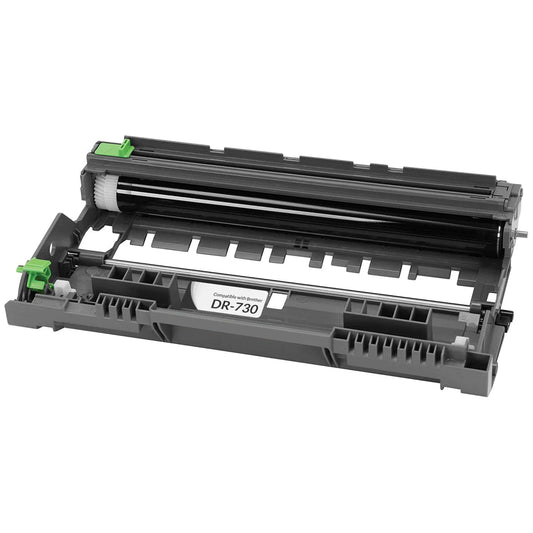
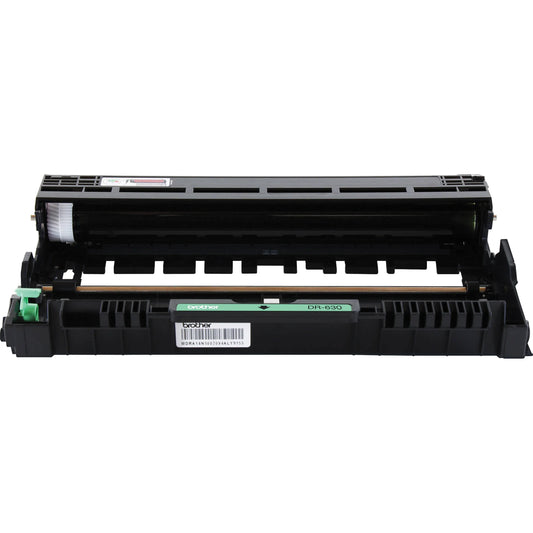
Understanding Your Printer: Toner Cartridge (TN850) vs. Drum Unit (DR820)
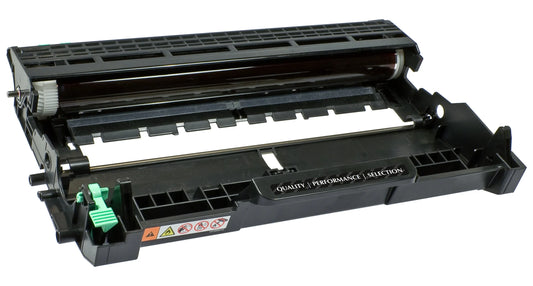
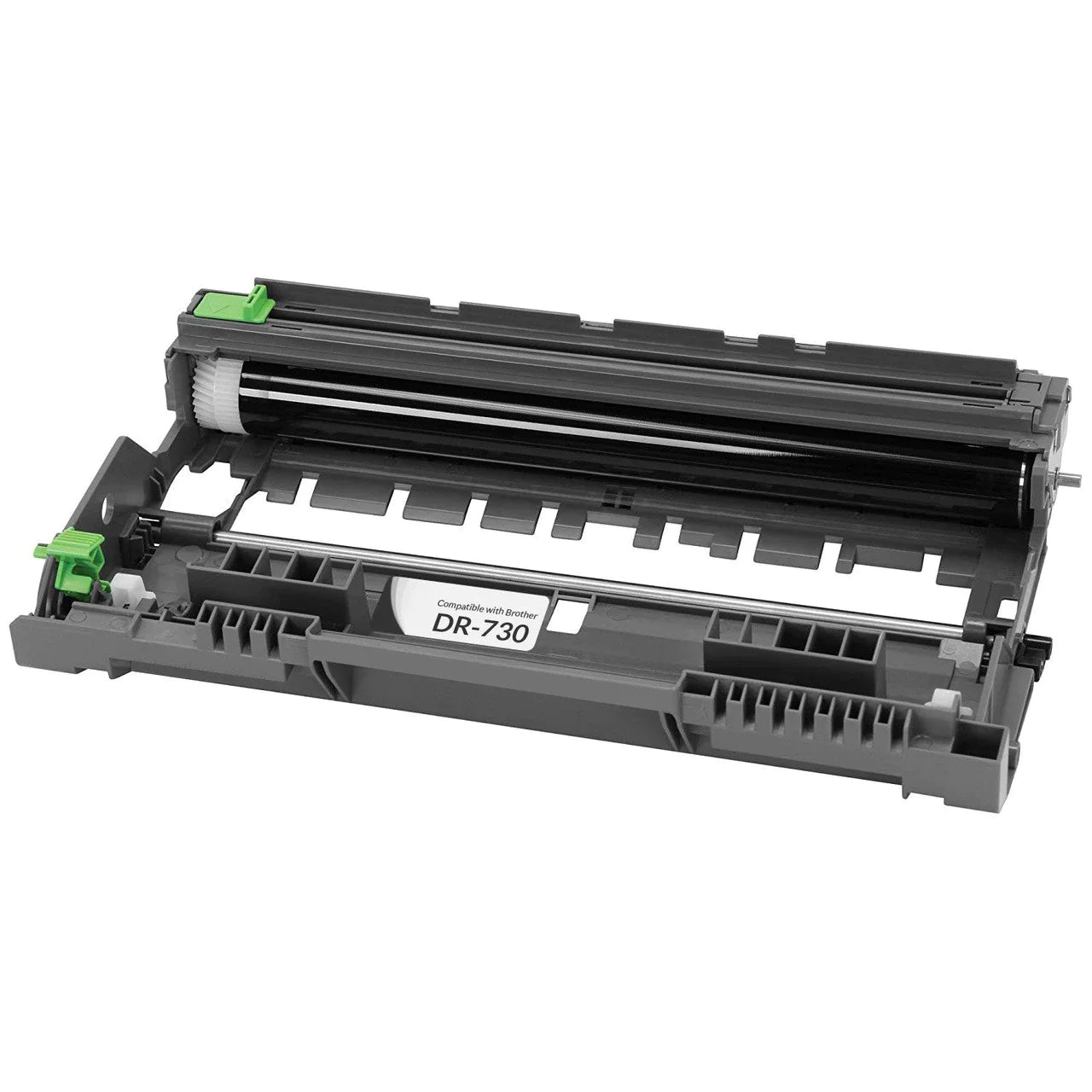
One of the most common points of confusion for Brother printer owners is the two-part consumable system. Unlike many other brands where the toner and drum are one piece, Brother separates them to save you money.
Knowing the difference between the TN850 Toner and the DR820 Drum ensures you only replace what is necessary, when it is necessary.
Key Differences at a Glance
| Feature | Toner Cartridge (TN850) | Drum Unit (DR820) |
|---|---|---|
| What it is: | The "ink" container. It holds the black powder used for printing. | The "transfer" unit. It uses static electricity to pull toner onto the paper. |
| How long it lasts: | Approx. 8,000 pages (High Yield). | Approx. 30,000 pages. |
| Replacement Ratio: | Replaced frequently. | Replace every 3 to 4 toner cartridges. |
| Warning Signs: | Faint prints, "Toner Low" message, or white streaks. | Consistent black dots, lines, or "Replace Drum" message. |
When to Replace the TN850 Toner Cartridge
The toner is the fuel for your printer. You should replace it when:
-
The printer displays "Toner Low" or "Replace Toner".
-
The text on your pages starts to look faded or grey instead of deep black.
-
There are vertical white streaks where the toner is running empty in certain spots.
When to Replace the DR820 Drum Unit
Think of the drum as the "engine" that applies the fuel. You should replace it when:
-
The printer displays "Replace Drum" or "Drum End Soon".
-
You see consistent black spots or marks every few inches down the page (this usually means the drum cylinder is scratched).
-
Your pages are coming out blurry or smeared, even after installing a brand-new toner cartridge.
Pro-Tip: The "Shake" Method
If your TN850 is showing "Toner Low" but you don't have a spare yet, remove the cartridge and gently shake it from side to side. This redistributes the remaining powder and can often get you another 50–100 pages in an emergency!
Additional Information
Shipping & Return
Reviews
My Wishlist
Wishlist is empty.
Compare
Shopping cart